If you’re looking to take your brand or business to the next level, you can’t afford to sleep on TikTok. With over a billion active users worldwide, this platform is a goldmine for reaching new audiences and driving serious engagement.
But simply posting organic content isn’t enough these days. To really maximize your TikTok potential, you need to tap into their powerful advertising tools. That’s where the TikTok Ads Manager comes in.
This handy platform allows you to create, manage, and optimize paid ad campaigns tailored to your specific goals. Whatever your end goal is, boosting brand awareness, driving traffic to your website, or even raking in sales, the Ads Manager has you covered.
Now let’s get started with this Step-by-step guide on How to create a TikTok Ads manager account?
Why Should I Create TikTok Ads Manager Account?
Creating a TikTok Ads Manager account is a game-changer for businesses looking to tap into one of the fastest-growing social media platforms. With over a billion active users, TikTok offers unparalleled reach and engagement, especially among younger demographics.
The Ads Manager provides powerful tools to create, manage, and optimize ad campaigns, ensuring your content reaches the right audience. You can set specific goals, target precise demographics, and track performance in real time, making it easier to achieve your marketing objectives.
Additionally, TikTok’s creative tools help you produce engaging, native-style ads that resonate with users.
How to Create TikTok Ads Manager Account?
Sign Up for TikTok Ads Manager
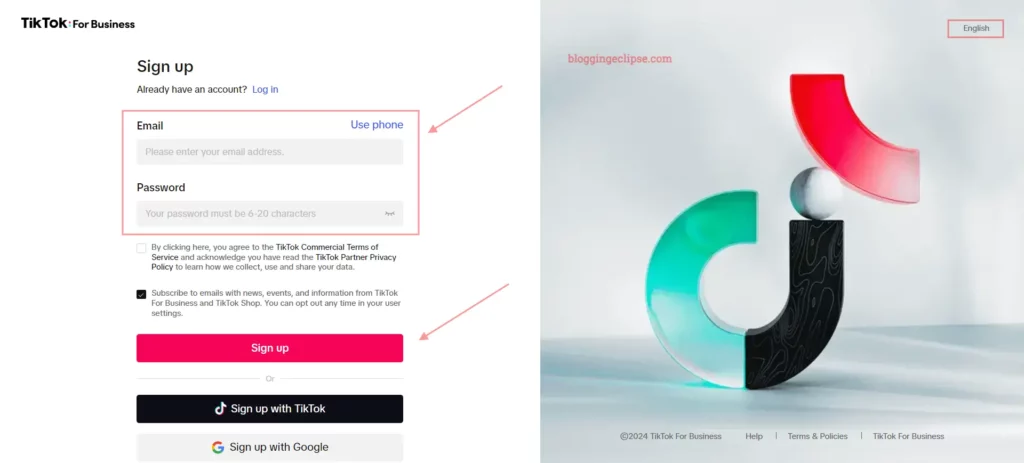
- Open the TikTok Ads Manager website.
- Sign up using your phone number or email address.
- Enter the verification code received.
Fill Out the Information Form

- Provide details about your business country, region, time zone, and billing currency.
- Enter your legal business name exactly as registered.
- Double-check and submit the form.

Set Up Your Account
- Go to the Dashboard > Account Settings > Account Info.
- Fill out additional business information accurately.
Provide Business Details
- Enter your company website URL (must be functional).
- Specify your industry.
- Provide your business address.
- Optionally verify your business
Choose Payment Method
- Select either manual or automatic payment.
Submit for Review
- Review all details carefully.
- Submit your account for TikTok’s review process (can take 24 hours).
Once approved, you’ll have access to the TikTok Ads Manager dashboard to create, manage, and optimize your ad campaigns on the platform.
Features Accessible in TikTok Ads Manager
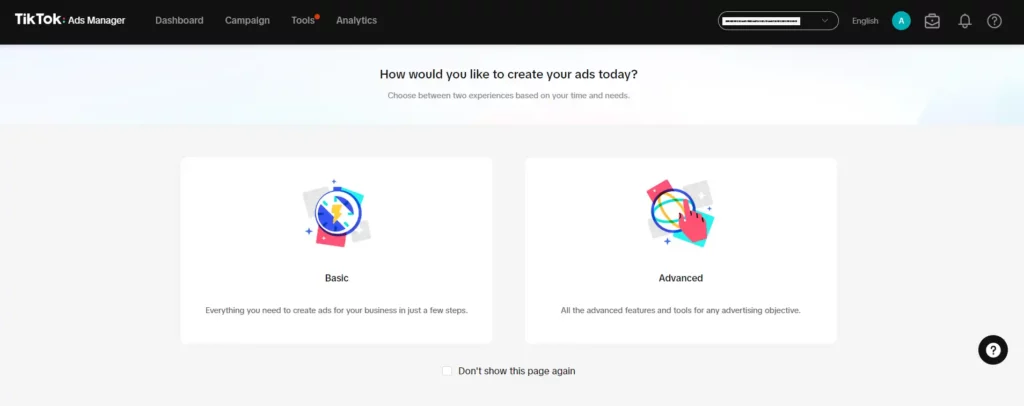
TikTok Ads Manager is straightforward once you understand the layout and available features. The navigation bar at the top of the page includes the following tabs:
- Dashboard: Provides an overview of your account performance and key metrics.
- Campaign: Allows you to create and manage your ad campaigns.
- Tools: Offers various tools for managing your ads and target audience.
- Analytics: Provides detailed performance reports and insights.
Users can also change their account language, switch users, and check Business Center notifications from the top-right corner of the page.
TikTok Ads Manager Dashboard
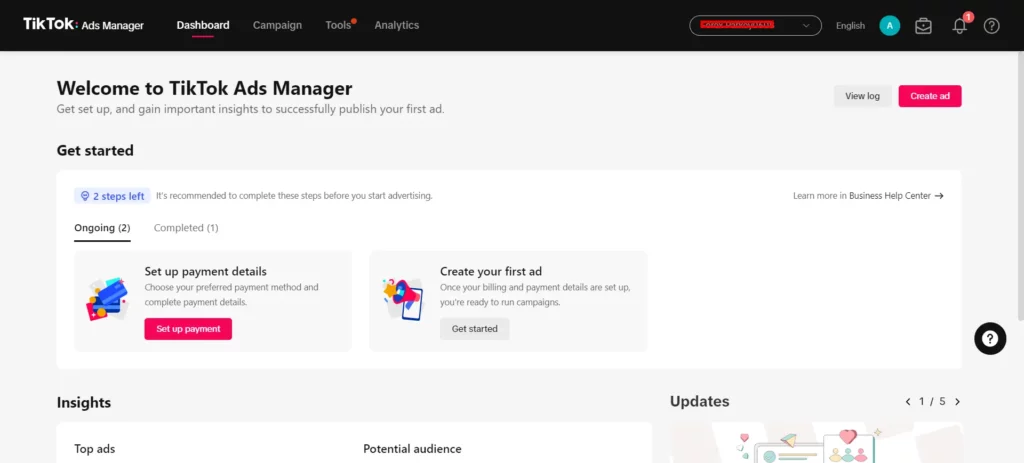
The Dashboard of TikTok Ads Manager serves as your central hub for managing and monitoring your ad campaigns. It provides a comprehensive overview of key metrics such as impressions, clicks, conversions, and ad spending, allowing you to track performance at a glance. The intuitive interface lets you easily navigate between different campaigns, ad groups, and individual ads.
With real-time data updates, you can make informed decisions and optimize your campaigns on the fly. The Dashboard also offers customizable reports and visualizations, helping you to analyze trends and measure the effectiveness of your advertising strategies efficiently.
Using TikTok Ads Manager Tools
TikTok Ads Manager offers a range of tools designed to help advertisers manage their campaigns effectively.
| Category | Features |
|---|---|
| Audience | – Audience Manager – Comments |
| Creative | – Creative Library – Instant Page – Video Editor |
| Management | – Automated Rules – Catalogs – Events – Leads – Pangle Brand Safety – Recommendation Center |
| Settings | – Account Setup – Brand Safety Hub – Documents – Payment |
Audience Tools
- Audience Manager: Build and manage custom and lookalike audiences for precise targeting.
- Comments: Manage and respond to comments on your ads.
Creative Tools
- Creative Library: Access ad templates, stock assets, and creative tools.
- Instant Page: Create landing pages directly within the Ads Manager.
- Video Editor: Edit and produce native TikTok-style video ads.
Management Tools
- Automated Rules: Set up automated rules to optimize campaigns.
- Catalogs: Upload product catalogs for collection ads.
- Events: Track conversions and events using the TikTok Pixel.
- Leads: Manage and access lead data from lead generation campaigns.
- Pangle Brand Safety: Control brand safety settings for ad placements.
- Recommendation Center: Get customized recommendations to improve performance.
Settings Tools
- Account Setup: Configure account details and settings.
- Brand Safety Hub: Manage brand safety controls and blocklists.
- Documents: Access reporting documents and resources.
- Payment: Manage payment methods and billing.
This comprehensive toolset within the TikTok Ads Manager enables advertisers to streamline their workflows, deliver more relevant ads, and drive better results from their TikTok marketing efforts.
Start Your TikTok Ad Campaign in 4 Easy Steps
Creating your TikTok ad campaign involves four key steps. First, set your advertising goal to define what you want to achieve. Next, select your target audience based on demographics and interests. Then, set your budget to control your ad spend. Finally, create your ad using TikTok’s creative tools to design engaging content.
Choosing Your TikTok Ad Goals

When creating a campaign in TikTok Ads Manager, you’ll need to select an advertising goal that aligns with your objectives. TikTok offers several goal options to cater to different business needs:
Choosing the right goal is crucial, as it determines how your ads are optimized and delivered to your target audience. Clearly define your campaign objectives upfront to ensure you select the most suitable goal for maximum impact and ROI.
Selecting Target Locations for TikTok Ads
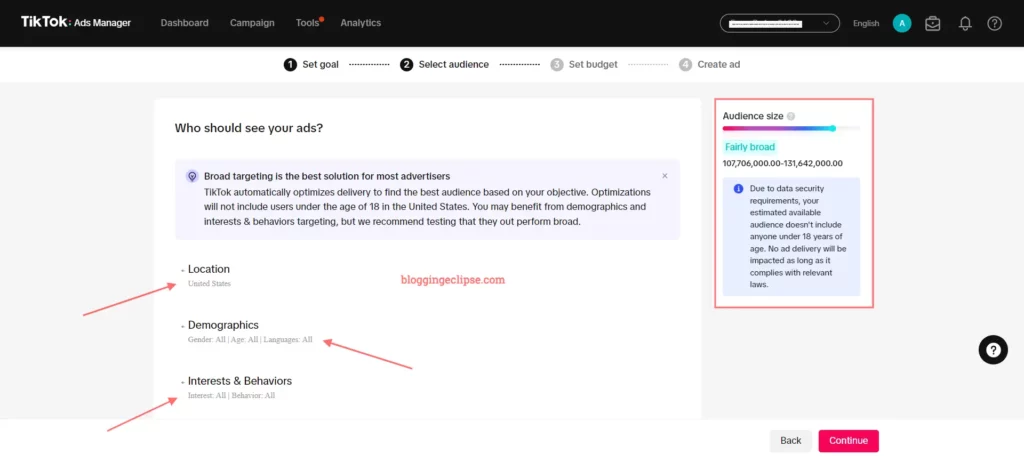
One of the key targeting options in TikTok Ads Manager is location targeting. This allows you to specify the geographic areas where you want your ads to be delivered, ranging from countries and regions down to cities and zip codes.
When setting up your campaign, you’ll find the location targeting settings under the “Demographics” section. Here are a few tips for effectively using location targeting:
Thoughtfully select and refine your location targeting, you can ensure your TikTok ads are being served to the most relevant local audiences, improving engagement and driving better campaign results.
Set Your TikTok Ads Budget
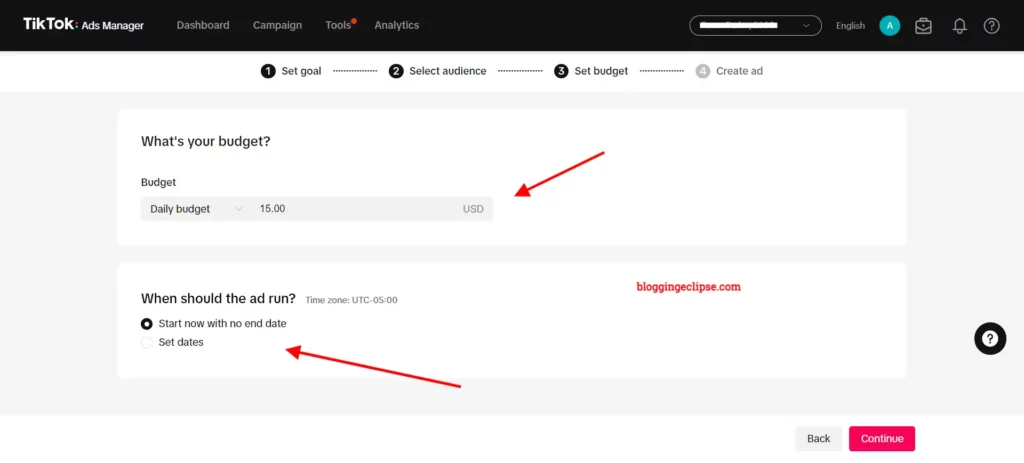
Setting an appropriate budget is a crucial step when creating campaigns in TikTok Ads Manager. TikTok offers flexibility by allowing you to set a daily budget cap for your ad spend. This daily budget determines the maximum amount you’re willing to invest in your campaign each day.
When defining your budget, consider factors like your overall marketing budget, campaign goals, and expected return on ad spend (ROAS). Start with a conservative daily budget, then gradually increase it as you gain insights into what’s working well. TikTok also enables you to schedule start and end dates for your campaigns, giving you full control over your ad delivery timeline.
It’s generally recommended to run campaigns continuously for optimal performance and data accumulation. However, if you have specific promotional periods or want to test different budget levels, you can easily pause and restart campaigns as needed. Regularly monitoring and adjusting your budget is key to maximizing your TikTok advertising ROI.
Create Your Ad Creatives

The final step in creating your ad campaign is to add your TikTok creative or video. Use TikTok’s creative tools to design engaging content that resonates with your audience. To utilize TikTok Creative, ensure your TikTok Ads account is connected. This integration allows seamless access to advanced features and optimizes your ad’s performance.
Billing and Payment on TikTok Ads
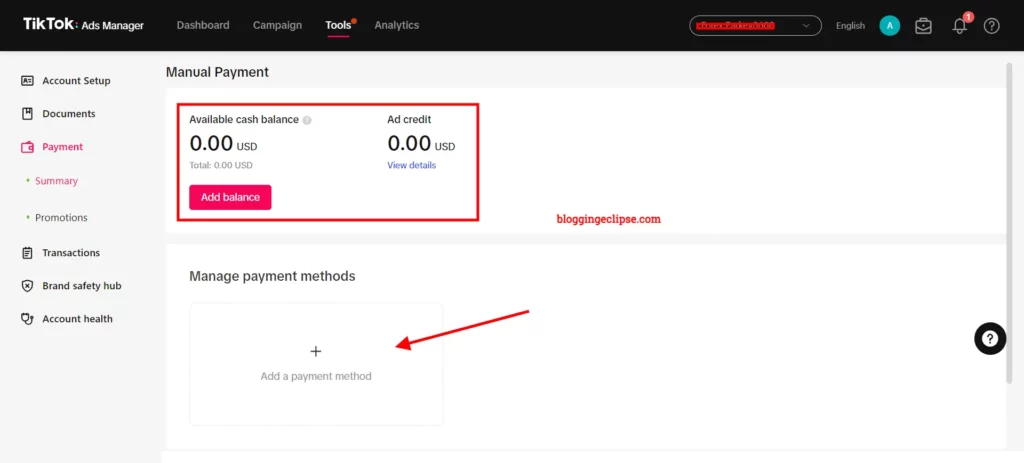
How to manage billing and payment on TikTok Ads is crucial for marketers. In this section we’ll cover the essential aspects of selecting payment methods, understanding invoices and transactions, and troubleshooting payment issues.
Selecting Payment Methods
TikTok Ads provides two primary payment methods: Manual Payment and Automatic Payment.
- Manual Payment: Users add a balance to their TikTok Ads account manually. This method is suitable for those who prefer to control their spending closely.
- Automatic Payment: This method deducts funds automatically from a linked payment method when the ad spend reaches a predetermined threshold.
Invoices and Transactions
TikTok Ads generates invoices for both Manual and Automatic Payments. These invoices are sent to the primary contact’s email within 5 working days. In Japan, Automatic Payment clients receive monthly invoices.
To access transaction details:
- Log in to TikTok Ads Manager.
- Click on the profile icon.
- Select “Payment.“
- Navigate to the “Transaction” page.
Invoices can be downloaded from Business Center or TikTok Ads Manager by following these steps:
- Log in to your account.
- Select “Payment.”
- Click on “Transactions.”
- Choose the desired transaction to download.
Keep an eye on the fields mentioned below and what details are needed to be filled up.
| Field | Corresponding Detail |
|---|---|
| Client Name | Name entered during Account Setup |
| Billing Address | Address entered during Account Setup |
| Tax Number | Tax information provided during Account Setup |
| Advertiser Name | Name of the advertiser |
Troubleshooting Payment Issues
If you encounter payment issues, follow these steps to troubleshoot:
- Verify Payment Method: Ensure your payment method is valid and has sufficient funds.
- Check Invoice Details: Review the invoice for any discrepancies.
- Contact Support: If issues persist, contact TikTok Ads support for assistance.
Common Queries Related to TikTok Ads Manager
What Information is Required to Set Up a TikTok Ads Manager Account?
You’ll need to provide your country/region, business name, phone number, industry, timezone, and currency.
What are the Payment Options available in TikTok Ads Manager?
You can choose between automatic payments (recurring) and manual payments (prepaid balance).
How Long Does it Take to Approve an Ads Manager Account?
Account approval typically takes around 24 hours.
How Do I Add a Payment Method to my TikTok Ads Manager Account?
Go to ‘Account Info’, click ‘Add Payment Method’, and choose between automatic or manual payments. Enter the required payment details.
How Do I Track the Performance of My TikTok Ads?
Use the Dashboard in TikTok Ads Manager to monitor key metrics like impressions, clicks, and conversions in real time.
You May Also Read:
- How to Use TikTok Ads Creative Center?
- 7+ Best TikTok Ads Spy Tools: How to Spy on TikTok Ads? (200% ROI)
- 16 Best TikTok Proxies to Boost Engagement
- 9 Top TikTok Analytics Tools: Maximize your TikTok Growth 📈
Get Ready to Master TikTok Ads
Congratulations! You’ve now mastered the essentials of setting up a TikTok Ads Manager account and creating your first ad campaign.
With TikTok’s powerful tools and vast audience, you’re well-equipped to boost your brand’s visibility and drive meaningful engagement. Remember, the key to success is continuous testing and optimization. Don’t be afraid to experiment with different ad creatives, targeting options, and budgets to find what works best for your business.
Keep an eye on your campaign performance through the Dashboard and optimize and keep on rolling.
🚀 Get Exclusive Affiliate Marketing Secrets🚀
Discover the strategies, tools, and tactics used by the top 1% of affiliate earners!

Join 69,572+ Affiliates already leveling up their game
Affiliate Disclosure: This post may contain some affiliate links, which means we may receive a commission if you purchase something that we recommend at no additional cost for you (none whatsoever!)